 SafePhone
Apps to Protect Children on Phones: 10 Apps That Keep Kids Safe Online
Kids are getting smartphones earlier than ever, and with them come inappropriate content, strangers online, scam links, and the risk of screen addiction. Apps to protect children on phones help parents limit screen time, know where their kids are, block harmful content, and stop scam links and calls. This guide rounds up 10 apps by need and shows how to combine them into a complete “protection kit” for your child.
Block scam links and calls on your child's phone with SafePhone

What risks do kids face on their phones?
A phone opens up a world of knowledge for kids, but also plenty of dangers they don't yet have the experience to spot:
- Inappropriate content: adult, gambling, and violent content can appear after just a few taps or through ads.
- Scam links and malware: kids are easily lured into tapping “claim your gift” or “free game top-up” links, or installing unknown apps that contain malware.
- Calls and messages from strangers: scammers may pose as a teacher, the school, or a friend of the parents to extract family information.
- Screen addiction: too much phone time affects sleep, schoolwork, and physical activity.
No single app handles everything. The effective approach is to pick the right tool for each risk, as grouped below. Read up on common scam tactics in 2026 to learn how scammers typically target children.
How to choose a child safety app
- Time limits: set usage hours, lock the device remotely, schedule bedtime.
- Location: know where your child is and get alerts when they leave a safe zone.
- Content filtering: block websites and apps that aren't age-appropriate.
- Scam protection: block malicious links, fake sites, and calls from unknown numbers.
- Privacy: how many permissions the app asks for and what data it collects about your child.
- Cost: whether it's free or a yearly subscription.
A detailed side-by-side of these criteria across Qustodio, Norton Family, Bark, Google Family Link, and SafePhone is available in our parental control apps comparison.
Apps that limit screen time
Screen time apps help parents cap how long their kids use a device.
1. Google Family Link
Google's free app lets you set screen time limits, lock devices remotely, and monitor your child's activity on Android. Parents can also approve apps before their child installs them.
2. Screen Time
Built into iPhone and iPad, it lets you manage time spent in each app and set a sensible usage schedule, for example turning off certain apps at bedtime. On Android, a similar feature lives under Digital Wellbeing & parental controls (the exact name varies by manufacturer and version).
Apps that track your child's location
Child tracking apps let parents know where their kids are.
3. Life360
Tracks location in real time and alerts you when your child leaves a safe zone you've set up, such as school or home. Works on both Android and iPhone.
4. Find My (Apple)
Locates devices within the Apple ecosystem — a good fit if the whole family uses iPhones.
Apps that block inappropriate content
The internet is full of content unsuitable for young children, which makes content filtering apps essential.
5. Kids Place
Creates a separate “kids' home screen” that only allows apps chosen by the parent. Ideal for young children who borrow their parents' phone.
6. Kaspersky Safe Kids
Blocks malicious websites and monitors your child's online activity.
Want stricter blocking? Instead of blocking bad sites one by one, you can block adult sites and allow only trusted websites with SafePhone — every site outside your allowlist is blocked, including brand-new ones.
Apps that block scam links and calls for kids
Kids are easily tricked into tapping fake links or installing malicious apps. Many parents overlook this category, yet screen time and location apps aren't designed to stop scams.
7. SafePhone — blocks scam links and calls and alerts parents
SafePhone is a free anti-scam app for Android. On your child's phone, SafePhone can:
- Block scam links and warn about dangerous websites before they open — especially useful when kids receive links via social media or messages. See how to block scam websites.
- Allow only trusted websites, blocking adult and gambling sites.
- Block Facebook and Google ads that lead to scam pages.
- Accept calls only from contacts, blocking unknown numbers before they ring — see how to block calls from numbers not in your contacts.
- Alert parents when the child receives a call from an unknown number or taps an unfamiliar link, via the family's shared Slack channel — see get alerts when a family member taps a suspicious link.
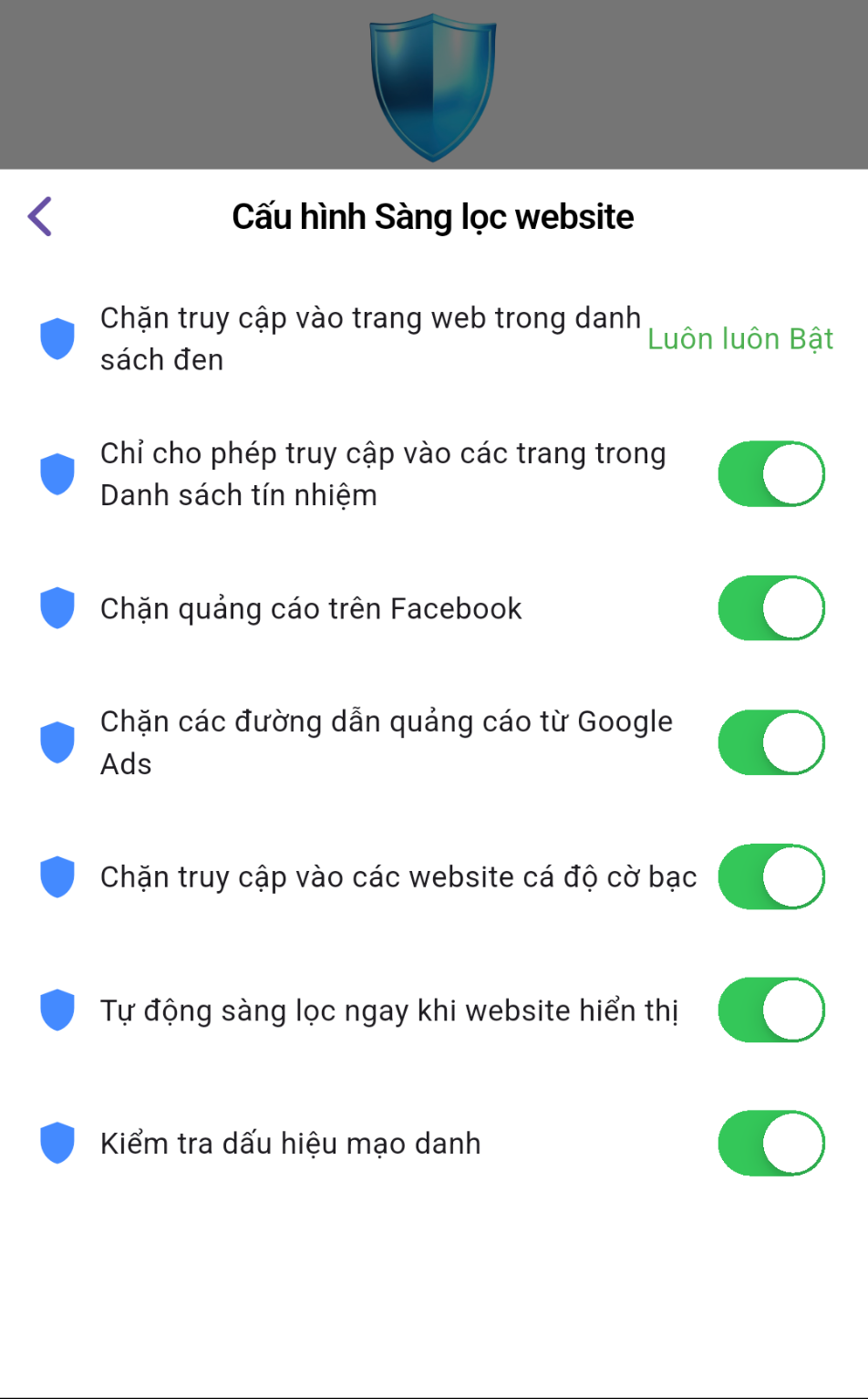
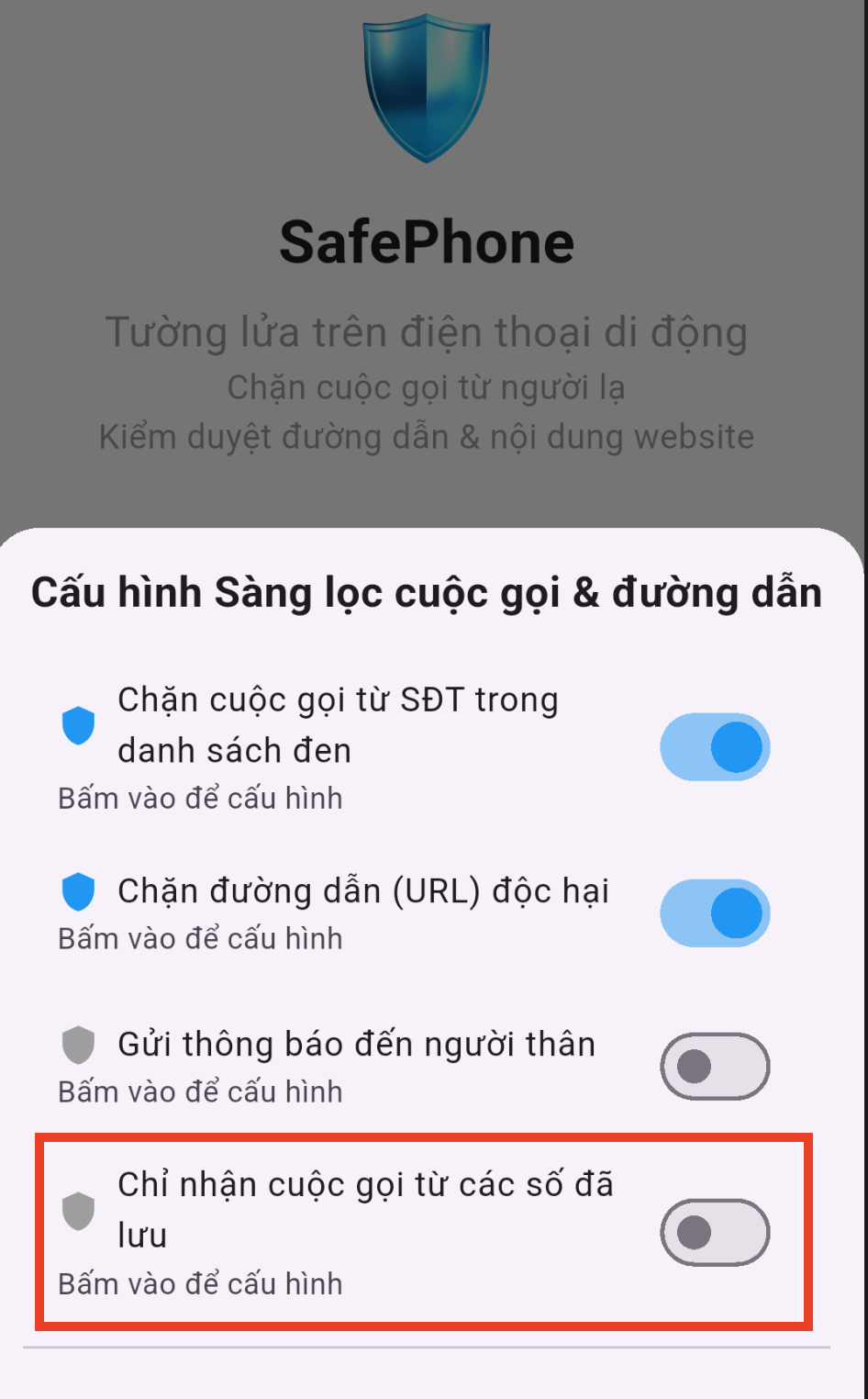
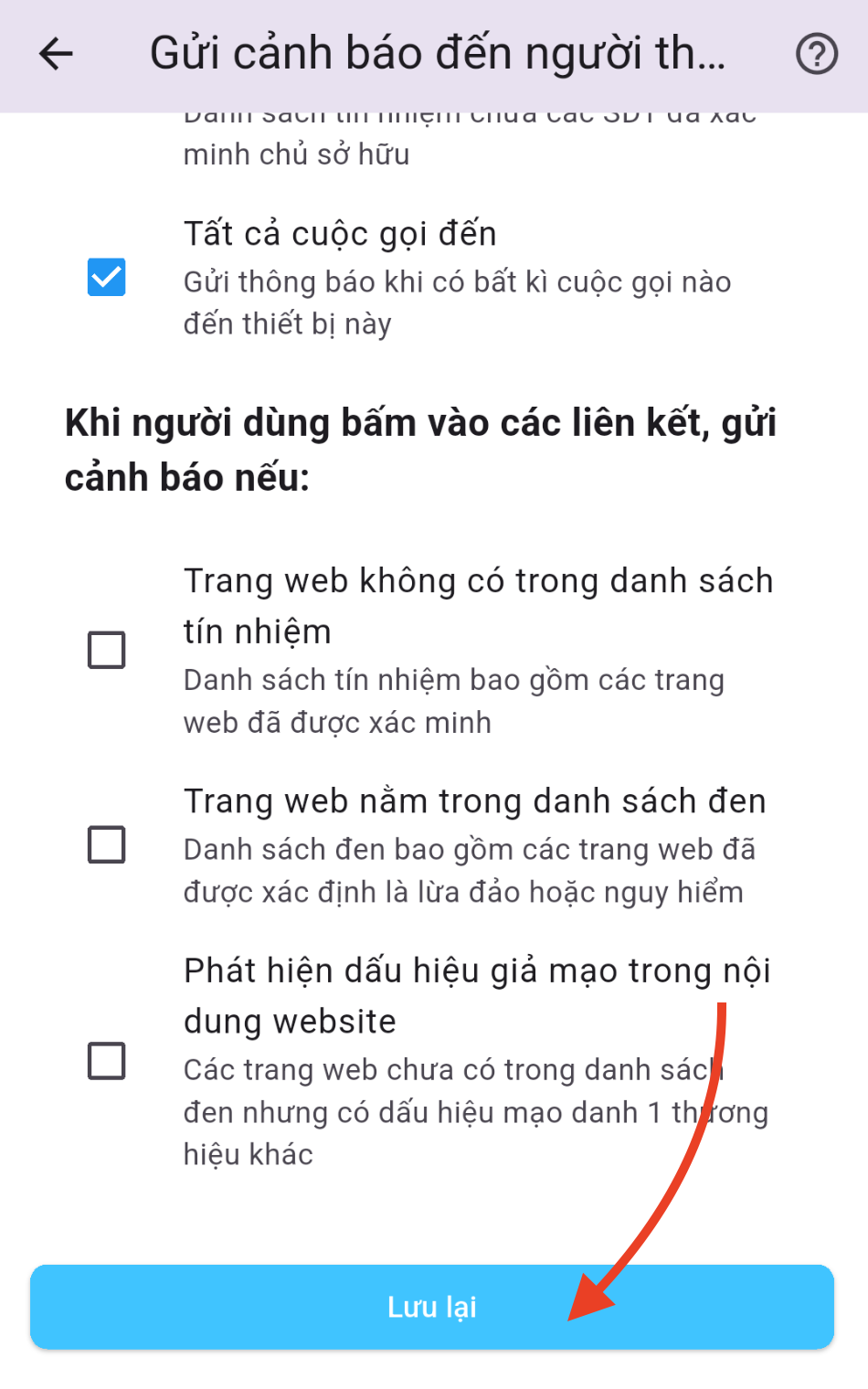
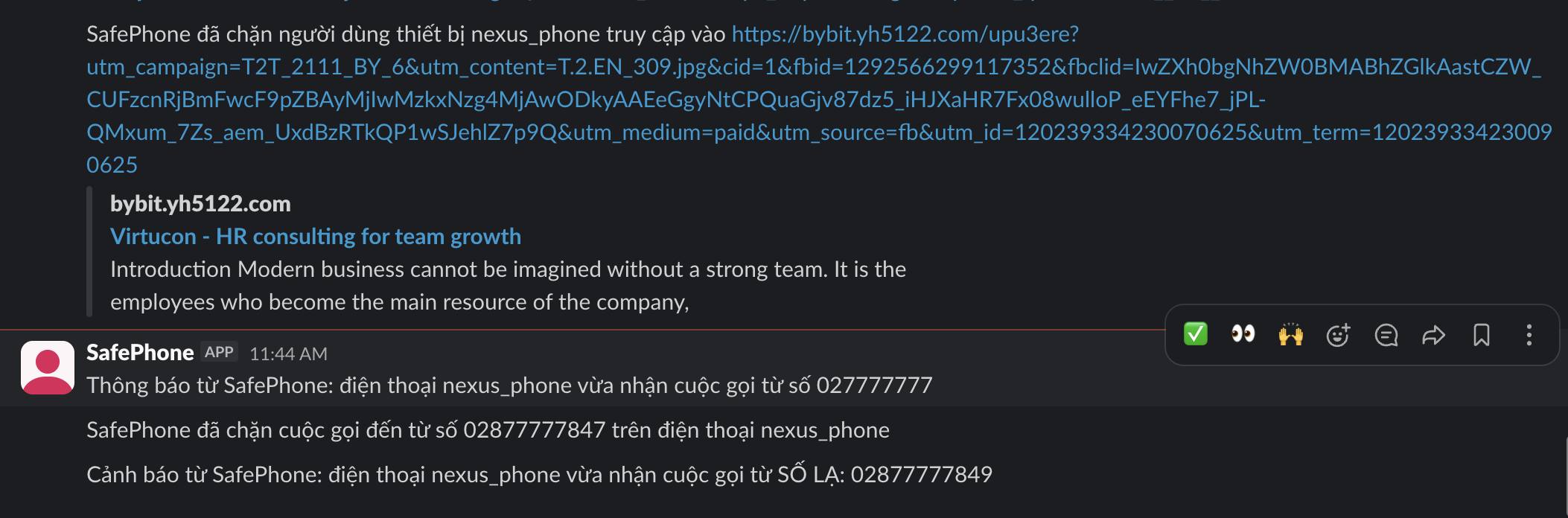
SafePhone is modular: just turn on the features that suit your child.
8. Google Play Protect
Built into Android phones that use Google Play, it detects malicious apps and helps protect the device. Make sure Play Protect is turned on in the Google Play app (tap your profile picture → Play Protect).
Content and app management apps (parental control)
Parental control apps help parents control what content their kids can access.
9. Qustodio
Monitors activity, blocks apps, and manages content effectively. It's a paid app.
10. Norton Family
Monitors browsing history and controls content. Also a paid app.
Summary table of the 10 child safety apps
| App | Main purpose | Platform |
|---|---|---|
| Google Family Link | Time limits, app approval, remote lock | Android |
| Screen Time | Per-app time limits | iPhone, iPad |
| Life360 | Location tracking, safe-zone alerts | Android, iPhone |
| Find My | Device location | Apple devices |
| Kids Place | Allows only selected apps | Android |
| Kaspersky Safe Kids | Blocks malicious websites, monitors online activity | Android, iPhone |
| SafePhone | Blocks scam links, sites, and calls; alerts parents | Android |
| Google Play Protect | Detects malicious apps | Android |
| Qustodio | Activity monitoring, app blocking, content filtering | Android, iPhone |
| Norton Family | Browsing history monitoring, content control | Android, iPhone |
How to set up SafePhone on your child's phone
You only need to do this once on your child's phone (Android):
- Install SafePhone from Google Play.
- Turn on the URL shield and set SafePhone as the default browser so every link your child taps gets checked.
- For young children, turn on “Only allow access to sites on the trusted list”.
- Turn on blocking for Facebook ads and Google Ads.
- Turn on accept-calls-only-from-saved-numbers mode, and save the numbers of parents, grandparents, and teachers in your child's contacts beforehand.
- Create a Slack channel for alerts for your family, then turn on alerts for when your child gets an unknown call or taps a suspicious link.
Combining child safety apps by age
| Stage | Priority | Suggested combination |
|---|---|---|
| Young kids borrowing a parent's phone | Open only selected apps and websites | Kids Place + SafePhone (trusted sites only) |
| Kids with their own phone | Time limits, app approval, blocking unknown numbers | Google Family Link + SafePhone (block scam sites, accept calls only from contacts) + Life360 |
| Older kids and teens | Respect privacy, prevent scams | SafePhone (block scam links, alerts) + a screen time agreement made together with your child |
Whatever apps you use, talk to your child about why you're installing them. Kids who understand why they need to be careful will come to you when something seems off, instead of trying to get around the limits. General principles are covered in how to stay safe online.
Your child tapped a strange link or got a scam call: what should parents do?
- Calmly ask your child what they tapped, what they entered, and what the caller asked. Avoid scolding, so they don't hide things next time.
- If your child entered a password (game, social media, email): change it immediately and turn on two-factor authentication.
- If your child installed an unknown app: uninstall it, scan with Google Play Protect, and check which apps have accessibility or device admin permissions.
- If the scammer asked for family information or demanded money: don't comply, verify directly with the family member involved, and report to the police if there are signs of fraud or threats.
- Check the link using our guide on how to check if a website is a scam, then turn on automatic blocking to prevent it from happening again.
If a child is being abused or is at risk of abuse, including online, contact your national child helpline or the police.
Quick checklist for parents
- Screen time limits and app approval are on (Family Link or Screen Time)
- Google Play Protect is on
- Scam link blocking and ad blocking are on on your child's phone
- Family members' numbers are saved in contacts and contacts-only calling is on
- Alerts for unknown calls and suspicious links go to the family channel
- You've talked with your child about online scams and agreed on phone rules
Have grandparents or elderly parents at home? See also apps to protect elderly parents.
Conclusion
No single child safety app does everything. Combining a screen time tool like Google Family Link or Screen Time, a location app if needed, and SafePhone to block scam links, websites, and calls covers most of the risks your child will face. Just as important is talking with your child so they understand and come to you when something seems wrong.
Install SafePhone for free on your child's phone
FAQ
Which apps to protect children on phones are free?
Google Family Link, Screen Time on iPhone, Google Play Protect, and SafePhone are all free. Family Link and Screen Time handle time limits, while SafePhone blocks scam links, websites, and calls.
Should I use several child safety apps at the same time?
Yes, because each app addresses a different risk. For example, use Google Family Link to limit screen time and SafePhone to block scam links and calls. Just avoid installing two apps that do the same job, since they may conflict.
How do I block adult websites on my child's phone?
You can use Google Family Link's filters for Chrome, or turn on SafePhone's trusted-sites-only mode so that every site outside your allowlist, including adult and gambling sites, is blocked.
How can I know when my child gets a call from an unknown number?
Install SafePhone on your child's phone and turn on alerts to family members. Whenever your child receives a call from an unknown number or taps an unfamiliar link, an alert is sent to your family's shared Slack channel.
Does SafePhone work on my child's iPhone?
SafePhone is currently available on Google Play for Android phones. On iPhone, parents can use Apple's built-in Screen Time and Find My.