 SafePhone
How to Block Adult and Gambling Sites on a Phone: Allow Only Trusted Websites
New adult, gambling and scam websites appear every day — no blocklist can keep up. This guide shows how to block adult sites on a phone the other way around: allow only trusted websites and block everything else automatically. It is the strictest form of protection for children and elderly parents.
Allow only trusted websites with SafePhone

Why blacklist blocking isn't enough
Blocking scam websites with a blacklist only stops sites that have already been identified as dangerous. That approach still leaves many gaps:
- It can't cover all the new malicious websites that appear every day
- Users can still reach sites that haven't been listed yet
- It's hard to control what children or elderly users browse
- Adult sites, gambling sites and inappropriate content not yet on the list easily slip through
When you need tight control, do the opposite: allow access only to websites that have been confirmed safe.
What is a whitelist?
A whitelist — also called a trusted list — is a list of websites that are allowed to open. When you turn on this mode in SafePhone, the phone can only open sites on the list; every other site, whether it's an adult site, a gambling site or a scam page created minutes ago, is blocked.
- Blocks every website outside the allowed list
- Maximum protection against malicious and scam sites — even ones nobody has reported yet
- Ideal for children, elderly users or any device that needs tight control
- No need to track and update a list of bad sites
How to turn on trusted-sites-only mode
- Open the SafePhone app. If you haven't installed it yet, get SafePhone on Google Play.
- Tap the row of shield icons on the second line.
- Turn on the switch next to "Only allow access to sites on the trusted list".
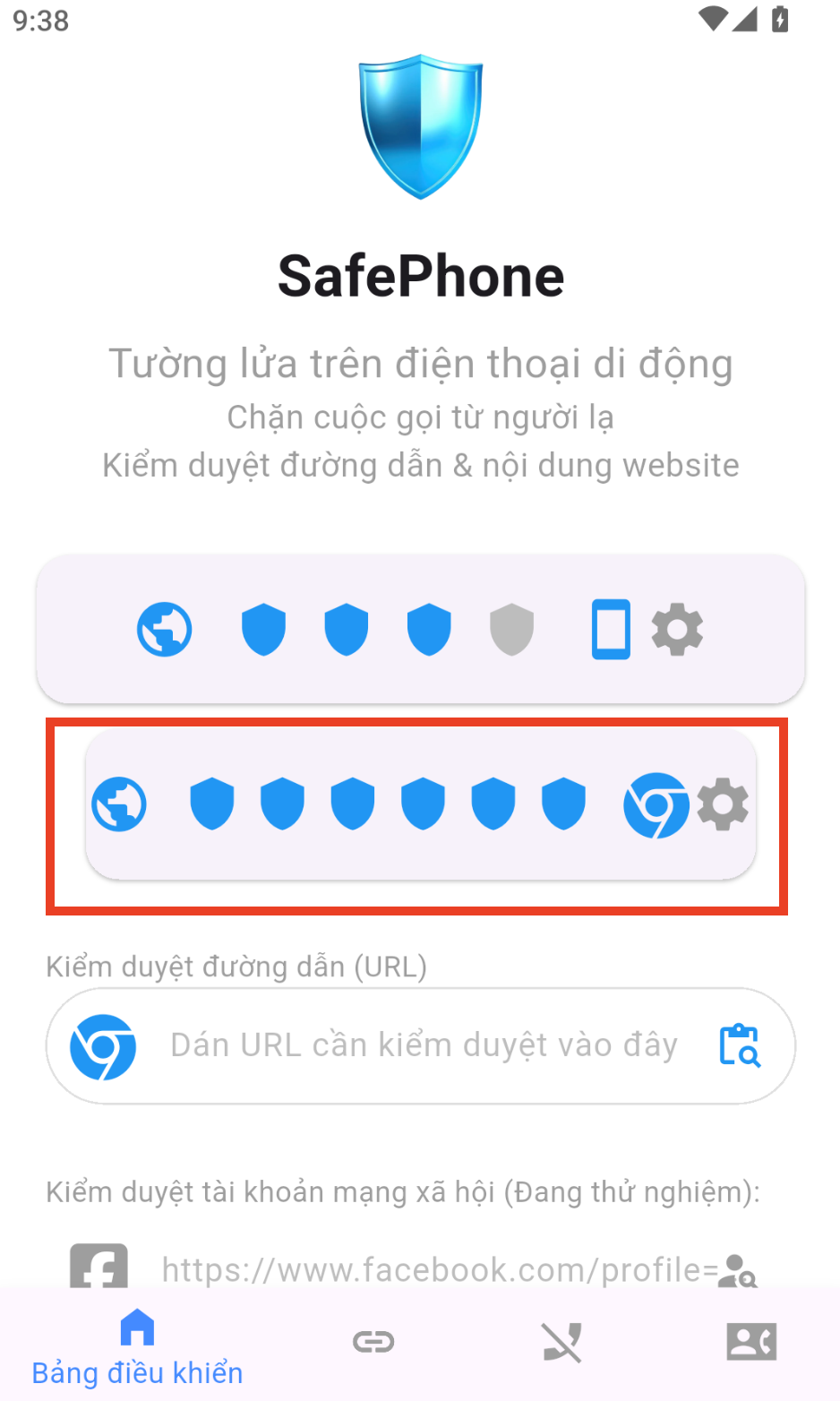
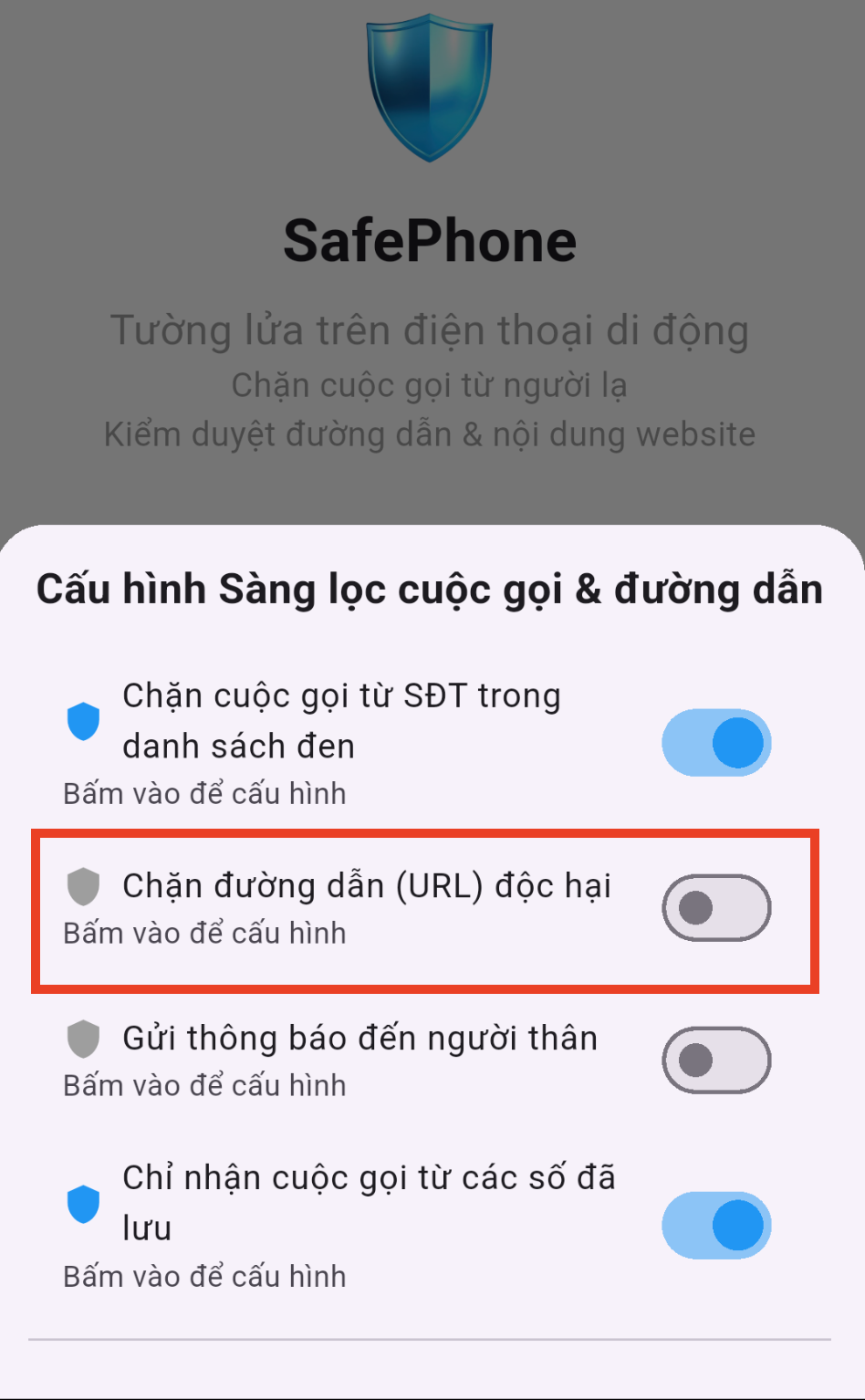
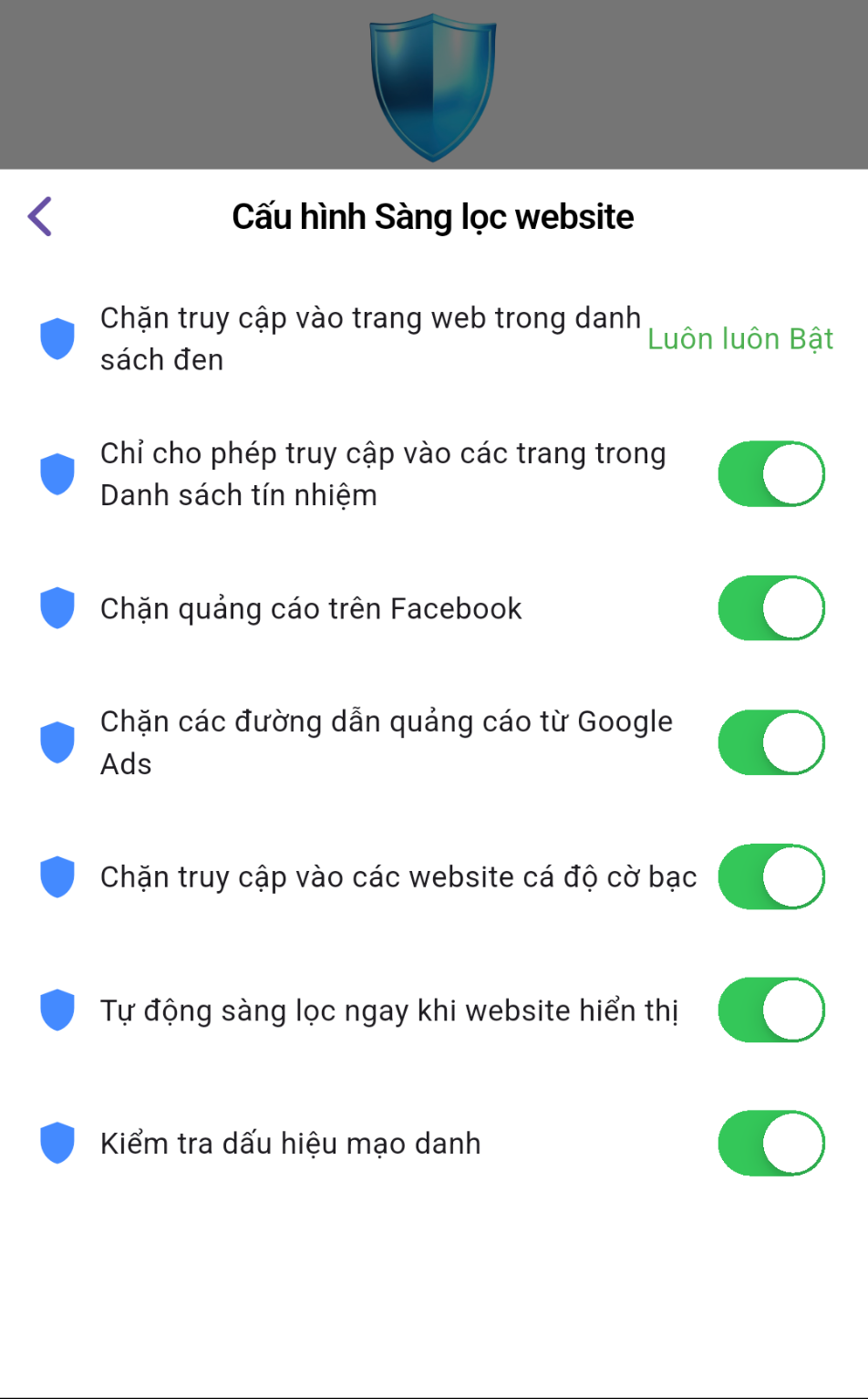
Once this is set up, the phone can only reach websites on the allowed list; all other access is blocked automatically.
Blocking adult sites for kids: SafePhone or Google Family Link?
Google Family Link also lets parents restrict children to approved sites in Chrome. The two tools differ in a few ways:
| SafePhone | Google Family Link | |
|---|---|---|
| Requires a supervised Google account for the child | No | Yes |
| Coverage | Links opened through the default browser | Chrome browser |
| Trusted site list | Built in, updated with the app | Parents add each site manually |
| Blocks scam calls | Yes | No |
| Suitable for elderly users | Yes | Mainly designed for children |
See the full comparison in our parental control apps compared article, or the list of apps to protect children on phones.
When to use this mode — and when not to
Use it on phones for children, elderly parents, or devices that only need a handful of familiar sites such as banking, news and learning.
It's not a good fit if you often need to open lots of new websites — in that case, use blacklist blocking together with ad blocking, and check if a website is a scam yourself whenever you come across an unfamiliar link.
Want to know when your child taps an unfamiliar link? Also turn on alerts when a family member opens a suspicious link.
Conclusion
Allowing only trusted websites is the most thorough way to block adult, gambling and scam sites, because it doesn't depend on whether a bad site has already been detected. With a single switch, you can turn your child's or parents' phone into a safe browsing environment.
Turn on trusted-sites-only mode
FAQ
Does this mode block adult and gambling sites?
Yes. Trusted-sites-only mode blocks every site that is not on the allowed list, so adult, gambling and scam sites are all blocked, including brand-new ones.
How is blocking adult sites different from blocking scam sites with a blacklist?
A blacklist only blocks sites that have already been identified as dangerous. A whitelist does the opposite: it only opens sites confirmed to be safe, so it is stricter but also more restrictive.
Are links opened inside WhatsApp, Facebook or YouTube blocked?
Some apps open links in their own built-in browser, so those links don't go through SafePhone. For young children, also restrict these apps with a parental control tool.
Do I need a supervised Google account like Family Link?
No. SafePhone works directly on the phone, with no need to create a supervised Google account for your child.