 SafePhone
How to Browse Safely on Your Phone with an Anti-Scam Browser
Scam websites, malware, personal data theft: browsing on your phone carries more and more risk. This guide covers how to browse safely: the habits worth building, and how to use SafePhone as an anti-scam browser that automatically checks every link before it opens.
Browse safely with SafePhone

Why aren't regular browsers safe enough?
Going online has become an essential part of everyday life. Along with the convenience comes a host of risks: scam (phishing) websites, malware, personal data theft and tracking of user behavior.
Browsers such as Chrome, Safari and Firefox have built-in security, but it relies mainly on global lists of malicious sites. These lists are often slow to add local scam sites that global lists miss, and they can't detect sites that use cloaking techniques. See the detailed review in our comparison of scam website blocker apps.
SafePhone is designed as a proactive layer of protection: instead of reacting only once a threat appears, the app checks every link before the website opens.
How does SafePhone check each link?
SafePhone combines two lists:
- Blacklist: sites identified as malicious or as impersonating other sites, gathered by analyzing ads on digital platforms and from other reputable analysis sources. The list is expanded daily.
- Trusted list: official and widely used websites.
Whenever you tap a link from an email or another app, SafePhone runs 4 checks:
- Is the site on the trusted list?
- Has the site been blacklisted?
- Does the displayed content show signs of impersonating another website?
- Does the link redirect through an unusual number of intermediate pages, a technique common in scam ads?
Learn more in how SafePhone works.
What does SafePhone do when it finds a dangerous site?
| Situation | SafePhone will |
|---|---|
| The site is on the blacklist | Block it and prevent access |
| The site is on the trusted list | Always allow access |
| The site impersonates another service or website | Show a warning and suggest leaving the page right away |
| Searching Google or browsing Facebook in SafePhone | Hide ads and “Sponsored” results |
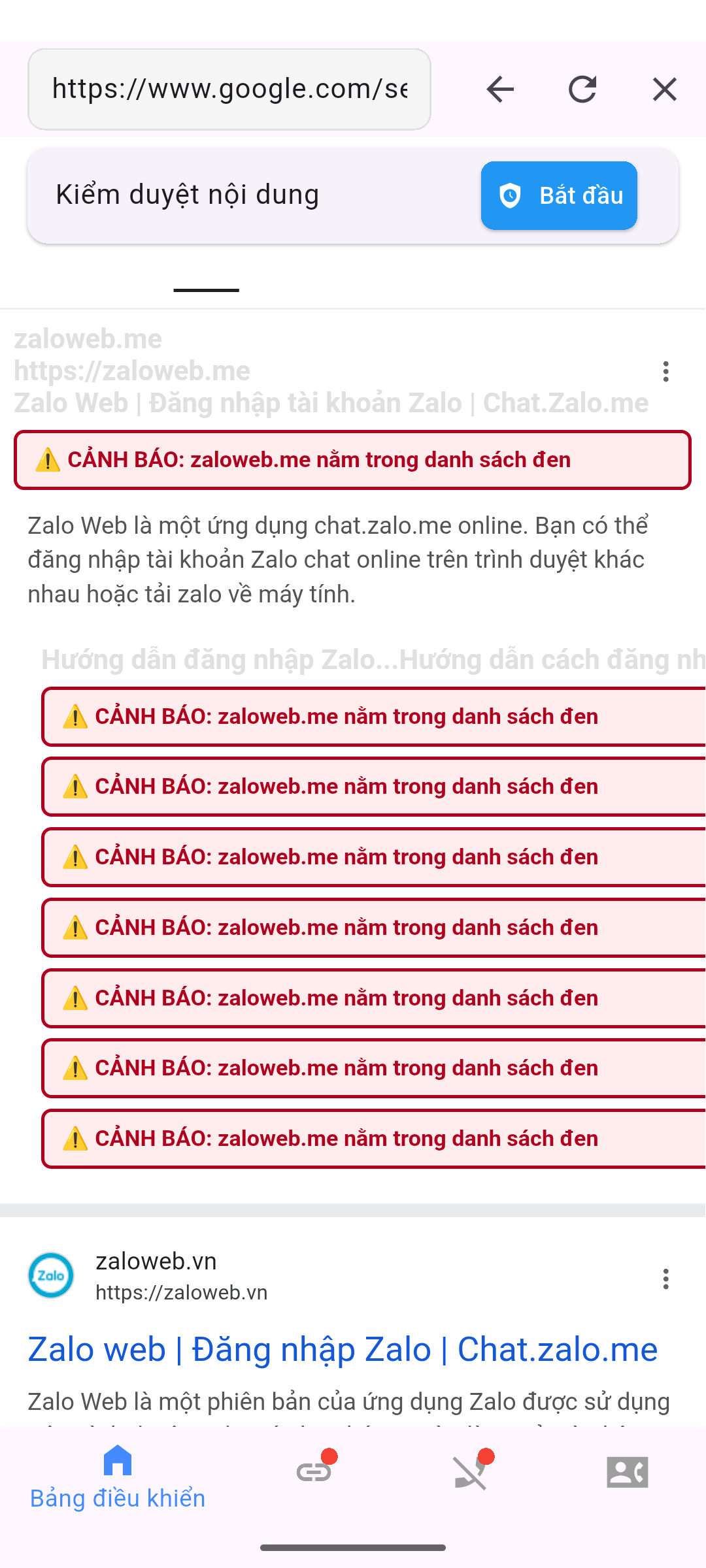
With a database updated daily and automatic checks, the risk of landing on a fake site is kept to a minimum. See also how to block ads on Android.
How to browse safely with SafePhone
- Download and install SafePhone from Google Play.
- Open the app and grant link screening access by setting SafePhone as your default browser; see the detailed steps in how to block scam websites.
- Turn on the protection modes you want: scam website blocking, ad blocking, or trusted sites only.
- Always open links through SafePhone rather than another browser.
- Update the app regularly to get the latest blacklist and trusted list.
Why does it need to be your default browser? See URL screening permissions on Android and iOS.
7 safe browsing habits
Even the best tool works best alongside good habits:
- Type the address yourself or use bookmarks for your bank and e-wallets, instead of tapping links in messages or search results.
- Don't tap unfamiliar links sent by SMS, WhatsApp, Telegram, Messenger or email, even when the sender claims to be a bank or government agency.
- Read the domain carefully before entering information; see 9 signs of a scam website.
- Don't trust the HTTPS padlock: most scam sites have one.
- Turn on two-factor authentication for email, social media and banking.
- Be careful on public Wi-Fi when logging in to important accounts.
- Keep your operating system and apps up to date.
See also habits that expose your personal data.
Safe browsing for children and older adults
SafePhone is especially well suited to people who aren't tech-savvy but still want to protect themselves and their families, and to parents who want to control what their children can access:
- Set SafePhone as the default browser on your child's or parents' phone, and show them how to use SafePhone to search and browse Facebook.
- For young children, turn on trusted sites only mode to block adult and gambling sites.
- Turn on alerts when a family member taps an unfamiliar link so you know right away and can step in.
Conclusion
Safe browsing is a combination of good habits and the right tools. SafePhone checks every link before it opens, blocks fake sites and hides scam ads, and over time, you and your family will build safer habits online.
Use SafePhone as your safe browser
FAQ
How can I browse the web safely on my phone?
Type addresses yourself or use bookmarks for your bank, don't tap unfamiliar links in messages, read the domain carefully before entering information, turn on two-factor authentication, and use a browser that checks for scam links, such as SafePhone.
How is SafePhone different from Chrome?
Chrome warns you based on a global list of malicious sites. SafePhone additionally checks a trusted list, a blacklist updated daily, signs of content impersonation and suspicious redirects, and it hides ads when you search or browse Facebook.
Which websites are on SafePhone's trusted list?
The trusted list includes official and widely used websites. The list is updated along with the app.
What if SafePhone blocks a site I believe is safe?
You can still open the site in another browser if you are sure it is safe. Check the domain carefully before entering any personal information.