 SafePhone
How to Block Ads on Android: Block Facebook and Google Ads That Lead to Scam Websites
Ads on Facebook and Google aren't just annoying. They're also a common path to scam websites. This guide shows you how to block ads on Android with SafePhone using just two toggles, plus another ad-blocking method built into Android's settings.
Block Facebook and Google ads with SafePhone

Why can ads lead to scam websites?
Many ads on Google Ads and Facebook are now a common vehicle for scams. Scammers use online ads to:
- Send users to fake websites that ask for personal information and banking passwords
- Trick users into installing malware or handing over control of their device
- Target children and older adults, who are more likely to tap without recognizing the danger
Scam ads are also aimed precisely at you based on your personal data. See how scam ads target you. Instead of blocking ad links one by one, SafePhone lets you block them all with a single toggle.
How to block ads on Android with SafePhone
- Open the SafePhone app and make sure you've set SafePhone as your default browser. If you haven't, follow the guide on how to block scam websites. Don't have SafePhone yet? Get it on Google Play.
- Tap the second row of shield icons.
- Turn on the “Block Facebook ads” toggle.
- Then turn on the “Block Google Ads” toggle.
- To turn ad blocking off, just switch the toggle back off.
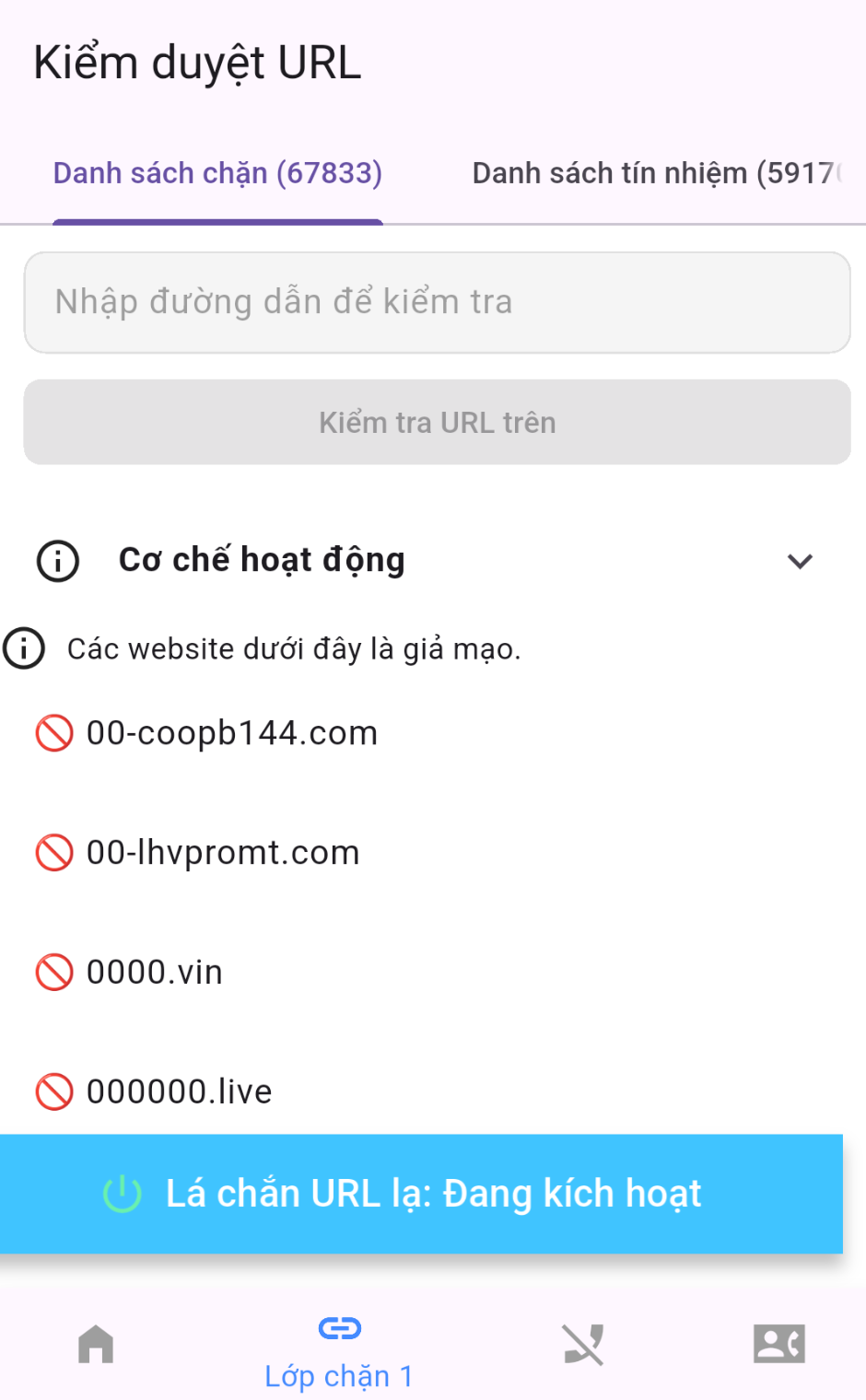
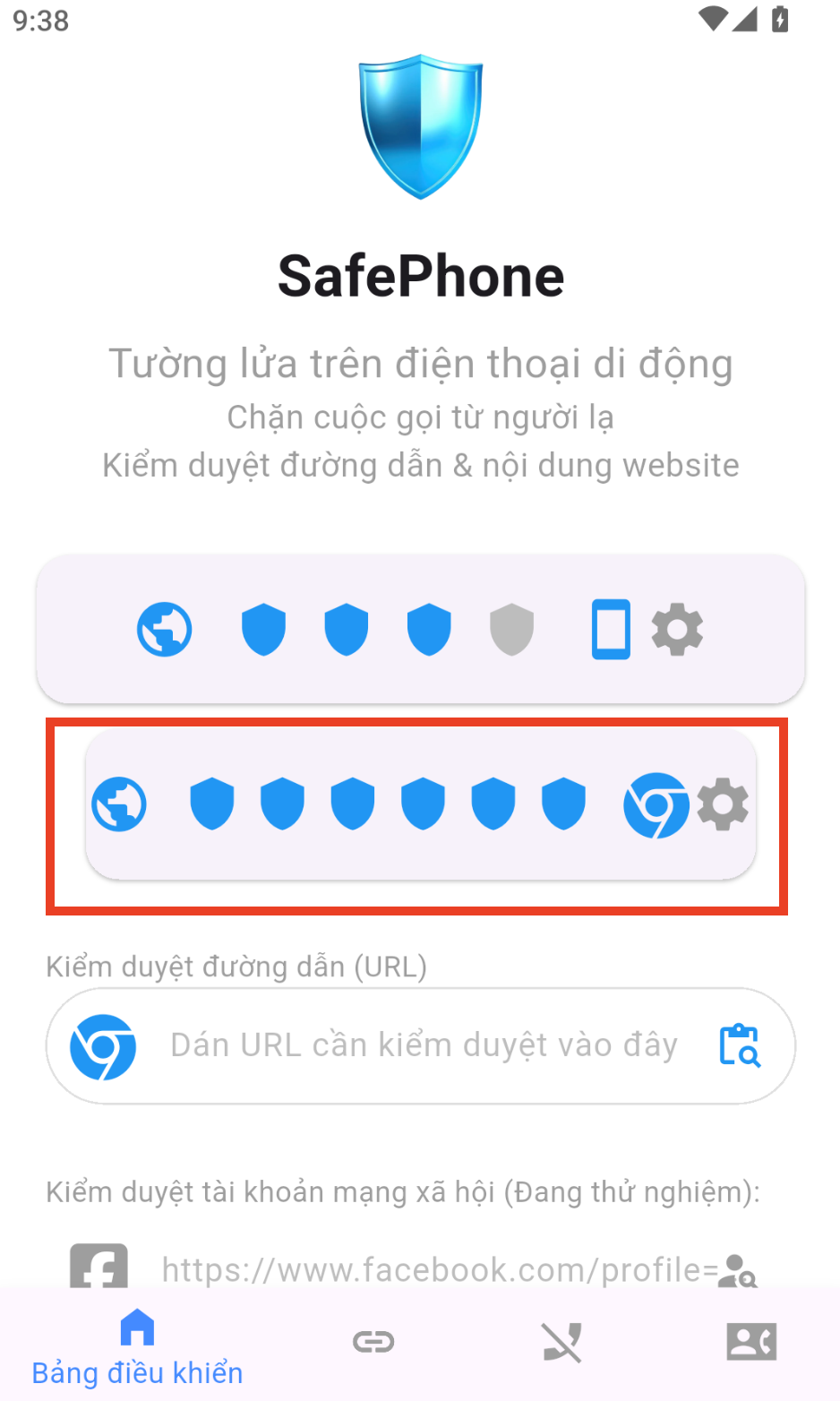
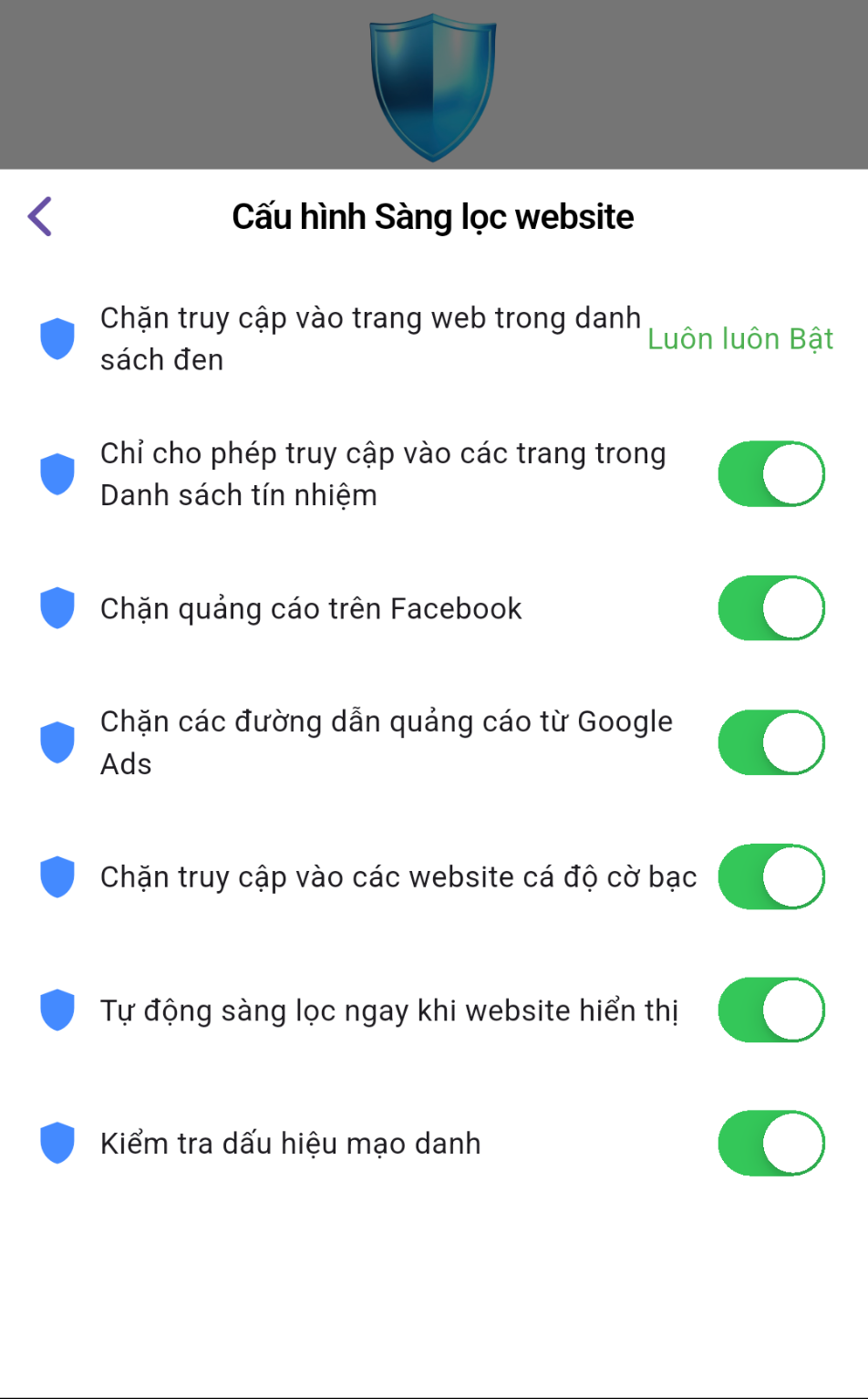
One tap, no complicated setup: ads that lead to scam websites are blocked, and you get a warning advising you not to visit them.
How does SafePhone block ads?
Blocking when you tap an ad link
With the toggle on, if you tap an ad link from Google Ads or Facebook and the link opens through your default browser, SafePhone blocks it and advises you not to visit.
Hiding “Sponsored” search results
When you search with SafePhone, results labeled “Sponsored” are hidden. These are paid results placed at the top, and attackers often abuse them to push fake sites above the official websites of banks and brands. Learn more about this technique in 12 camouflage techniques scam websites use.
Hiding sponsored posts when you browse Facebook
If you browse Facebook with SafePhone's built-in browser, sponsored posts are hidden too. The experience won't be as smooth as the official Facebook app, but it's very handy if ads bother you or you want to protect your family. Learn more about how to browse the web safely with SafePhone.
Another option: block ads with Private DNS on Android
Android (version 9 and later) has a Private DNS feature that lets you use an ad-blocking DNS service for your whole phone:
- Open Settings → Network & internet (or Connections on Samsung) → Private DNS.
- Choose Private DNS provider hostname and enter the hostname of an ad-blocking service, for example
dns.adguard-dns.com. - Tap Save.
This method blocks ads in many apps, but it has limitations: it sometimes breaks certain apps or websites, it can't hide sponsored posts on Facebook (because they come from the same servers as real content), and it doesn't warn you when you open a scam website. You can use Private DNS and SafePhone together.
Protect your kids and parents from scam ads
If you worry that your young children or elderly parents could be lured in by ads while browsing the web or Facebook:
- Set SafePhone as the default browser on their phones and turn on ad blocking.
- Show them how to use SafePhone to search and browse Facebook. This habit greatly reduces the chance of tapping a scam link.
- Turn on alerts when a family member taps a suspicious link via your family Slack channel so you know right away if something happens.
- For young children, consider the trusted-websites-only mode.
Conclusion
Blocking ads doesn't just make browsing more pleasant. It also cuts off one of the most common paths to scam websites. With SafePhone, all you need to do is turn on two toggles and get into the habit of searching and browsing Facebook with SafePhone.
Turn on ad blocking with just 2 toggles
FAQ
Does SafePhone remove ads inside the Facebook app?
Ads inside the official Facebook app are still shown. When you browse Facebook with SafePhone's built-in browser, sponsored posts are hidden.
Are “Sponsored” search results dangerous?
Not all of them, but they are paid results placed at the top, and attackers often abuse them to push fake sites above the official ones. SafePhone hides these results when you search.
Do I need to set SafePhone as my default browser to block ads?
Yes. SafePhone can only check and block ad links that are opened through it, so it needs to be your phone's default browser.
How do I turn off ad blocking?
Open SafePhone, tap the second row of shield icons, and switch off the Block Facebook ads or Block Google Ads toggle.